Choose the agent or harness you already use, then follow the setup prompt above to connect it to Kei. Kei supports Claude Code, Codex, OpenCode, Pi, Open WebUI, and SDK (Agentware) integrations. This onboarding flow configures an existing harness and can help install the public Kei skills. Installing skills and integrating an agent through the SDK are separate tasks.
For the full browser sequence, including workspace, connector, and policy setup, see Getting Started: Web Onboarding. For SDK (Agentware) integrations, see Build on the Agentware SDK.
Installing skills provides coding-agent guidance; it does not deploy a harness. For a local workstation/headless workflow, use kei setup and kei runtime bootstrap in CLI authentication and runtime setup. For a deployed service or SDK (Agentware) integration, configure the customer-owned runtime and secret store using Tenant-side runtime.
Use the integration documented for your harness to route governed operations through your tenant-side connector runtime. SDK (Agentware) integrations use KeiProxyEvaluator; Pi uses the kei-lime-pi extension and local runtime socket; Open WebUI uses its own image and tool packs. The runtime evaluates policy and performs governed connector operations in your environment. See how the connector runtime enforces policy. Keep provider credentials and customer data in your tenant environment.
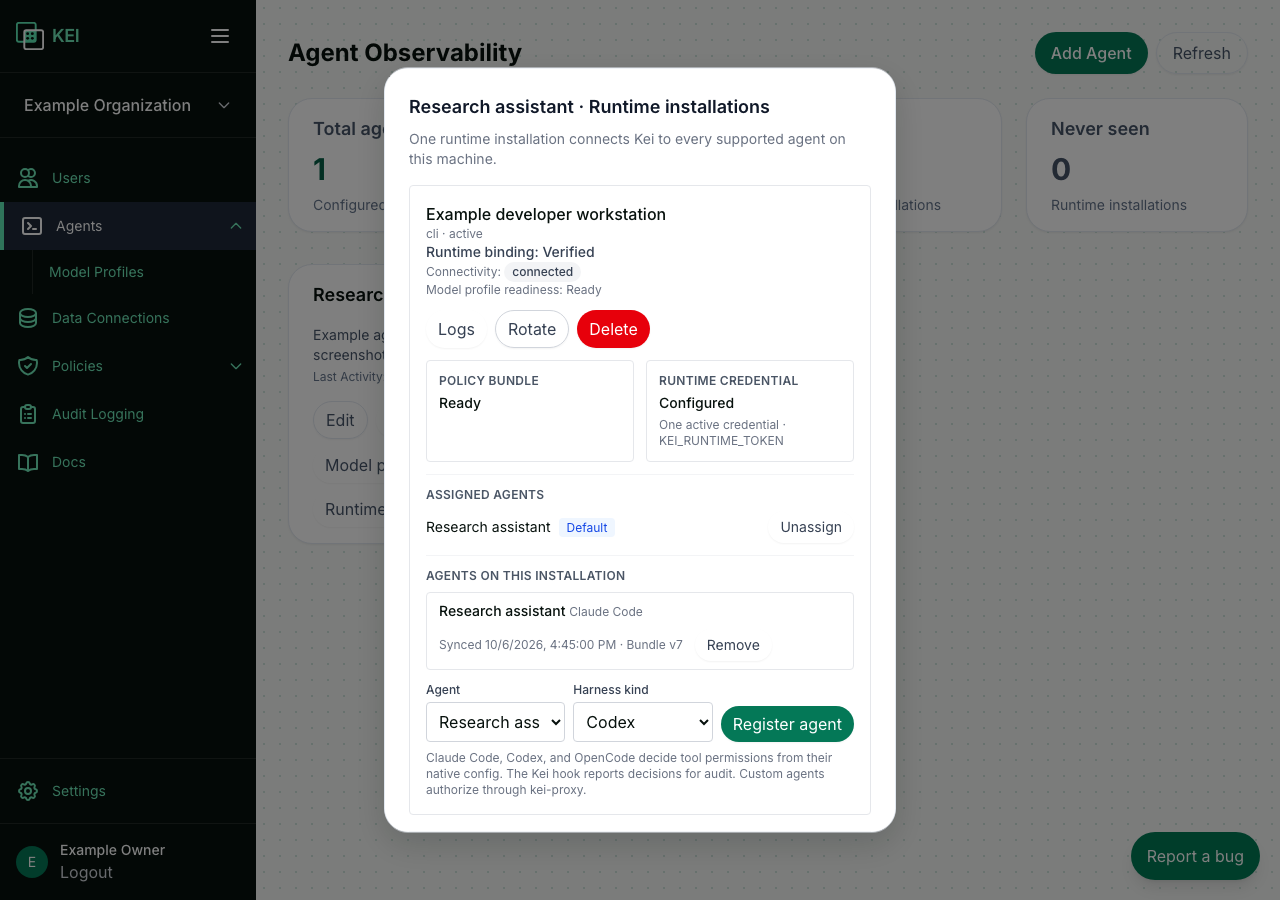
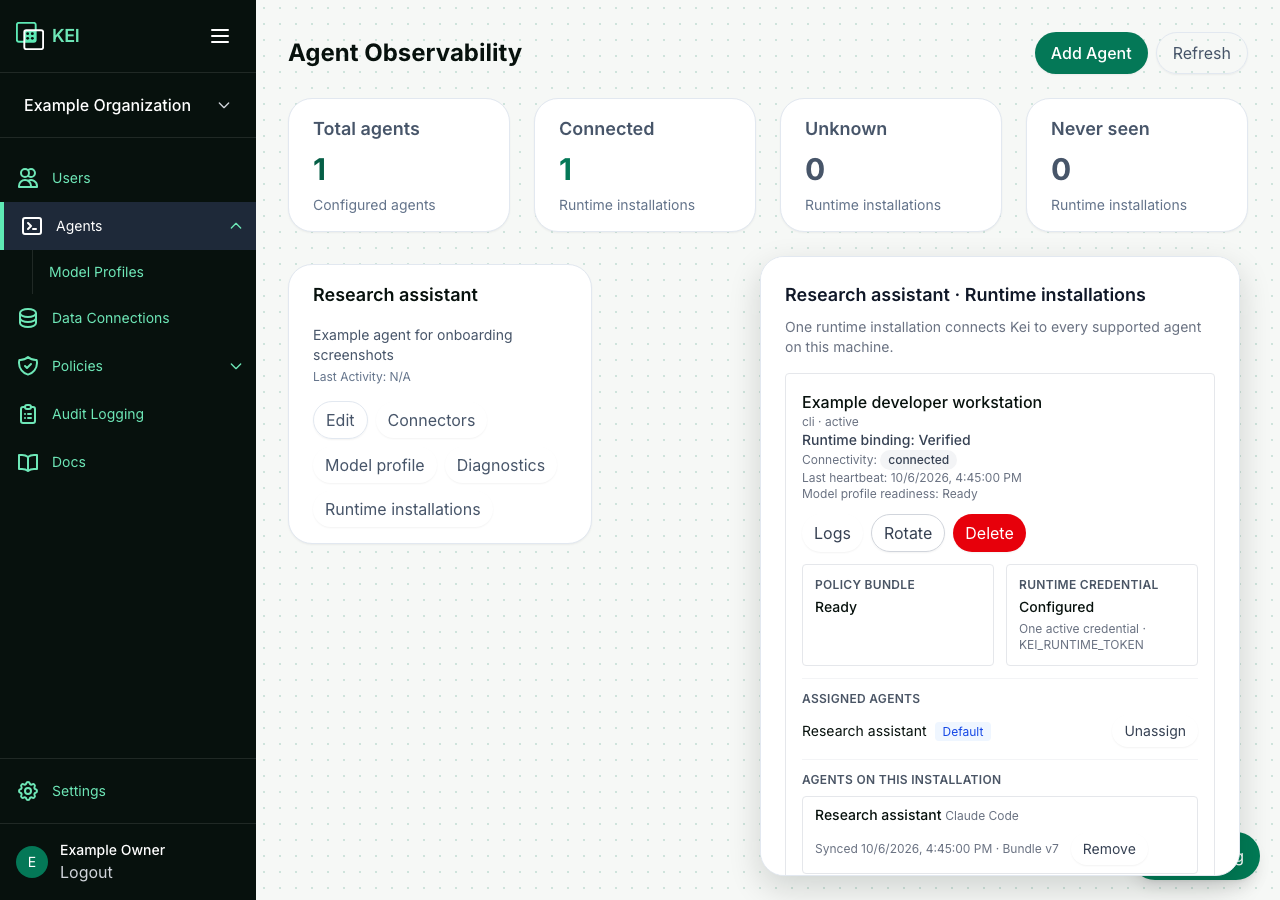
Create and connect agents from Agents → Add Agent. The wizard names the agent, assigns an active workspace model profile, creates its runtime installation, and reveals the installation credential once. Use the Connect step for workstation or deployed-service instructions. After setup, manage installation credentials, status, and logs from Agents → Runtime installations. The production control-plane URL is https://app.haikeilabs.com.
For the getting-started overview, see Connect your harness. For workstation commands, see CLI authentication and runtime setup. For a deployed service, see Tenant-side runtime. If the installation does not receive a heartbeat, follow runtime heartbeat troubleshooting.
Set up your harness#
Creating a runtime installation with kei bot init requires an organization owner or admin. If you do not have that role, ask an admin to create the installation in Agents → Add Agent. Each machine has one runtime installation, and each desktop harness (Claude Code, Codex, or OpenCode, interactive or headless) runs as a session of that installation. There is no per-harness setup in the console.
For Claude Code, Codex, and OpenCode, run the installer in a terminal on the machine where that harness is installed. The script installs the Kei skills and syncs the current policy bundle. kei harness sync detects these desktop harnesses; they do not need kei harness add. Pi uses a separate extension package and setup flow below. Do not paste a runtime credential into a harness config.
After upgrading kei-cli to 0.1.17, run kei runtime service install again so the service restarts on the new kei-proxy. Then run kei harness sync. Harness tool calls will appear in Audit Logs with the harness kind and session.
When to use kei harness add#
Each machine has one runtime installation. Claude Code, Codex, and OpenCode are sessions of that installation; kei harness sync detects and configures them, so they do not need registration. kei harness add is only for an SDK (Agentware) integration (kind custom) that you want listed on an installation.
Do not use kei harness add for Claude Code, Codex, or OpenCode on your workstation. Preview what sync will change, then apply it with kei-cli 0.1.17 or later:
kei harness sync --dry-run                 # review changes for every harness detected locally
kei harness sync                           # apply
kei harness sync --harness claude_code     # or sync just one harness
Do not add a second editor on the same machine or create another installation for it. It becomes another session automatically.
Use kei harness add for an SDK (Agentware) integration running on this installation:
kei harness add --kind custom                         # kei-cli 0.1.18+: use ~/.config/kei.yaml and the default agent
kei harness add --kind custom --agent <AGENT_UUID>    # attach to a specific agent assigned to the installation
kei harness list --installation <INSTALLATION_UUID>
On kei-cli 0.1.17 and earlier, specify the installation and agent explicitly:
kei harness add --installation <INSTALLATION_UUID> --kind custom --agent <AGENT_UUID>With kei-cli 0.1.18 or later, the installation is resolved from the runtime config and the agent defaults to the installation’s default agent, which you can set with kei bot agents add --default. The SDK harness authorizes each governed call with kei-proxy authorize through agentware’s KeiProxyEvaluator. Calls that match no policy are denied.
If kei harness add reports ALREADY_EXISTS, that agent already has a harness on the installation. For a desktop harness, use kei harness sync; for another SDK (Agentware) integration, pass --agent with a different agent assigned to the installation. If it reports no default agent found, set one or pass --agent:
kei bot agents add --installation <INSTALLATION_UUID> --agent <AGENT_UUID> --defaultFor how Kei policies affect command permissions, what remains under your harness’s control, and how to diagnose a bad sync, see Run your own harness with Kei permissions.
See How it works for how Kei distributes policies to your chosen harness and records audit events.
Claude Code#
curl -fsSL https://haikeilabs.com/install.sh | bash -s -- -d ~/.local/binThe installer installs kei in ~/.local/bin. Then run setup-claude-code.sh. To check the result, run verify.sh.
Expected CLI output includes Logged in to Kei for organization …, a bootstrap JSON response with "status":"active" and "binding_status":"verified", and sync exit code 0.
Codex#
curl -fsSL https://haikeilabs.com/install.sh | bash -s -- -d ~/.local/binThe installer installs kei in ~/.local/bin. Then run setup-codex.sh. To check the result, run verify.sh.
Expected CLI output includes Logged in to Kei for organization …, a bootstrap JSON response with "status":"active" and "binding_status":"verified", and sync exit code 0.
OpenCode#
curl -fsSL https://haikeilabs.com/install.sh | bash -s -- -d ~/.local/binThe installer installs kei in ~/.local/bin. Then run setup-opencode.sh. To check the result, run verify.sh.
Expected CLI output includes Logged in to Kei for organization …, a bootstrap JSON response with "status":"active" and "binding_status":"verified", and sync exit code 0.
Pi#
Install the skills and the Pi adapter on the same machine as the kei-proxy runtime:
pi install git:github.com/HaikeiLabs/skills
pi install git:github.com/HaikeiLabs/kei-lime-pi
pi list
Use pi install -l before either package to keep it in the current project’s .pi/settings.json; otherwise Pi installs it in user settings. Restart Pi or run /reload. Review extensions before installing: they execute with the user’s full system permissions.
Pair Pi with a local runtime using CLI authentication and runtime setup. Use kei-proxy 0.2.1 or later with the owner-only Unix socket enabled. Pi calls that socket; the daemon holds KEI_RUNTIME_TOKEN. Never put the runtime token in Pi’s environment, settings, or project files.
The adapter gates local read, write, and edit calls and provides kei_connector for v2 connector tools. Unknown tools fail closed. A connector call requires its exact v2 tool plan, a matching agent binding, and policy in the active bundle; installing the adapter grants none of these. It does not currently implement web_search or search_wiki in Pi. For those tools, a Pi-side executor and matching runtime registration are required. See the public kei-pi-setup skill for Pi-specific troubleshooting and verification.
If you see Not ready#
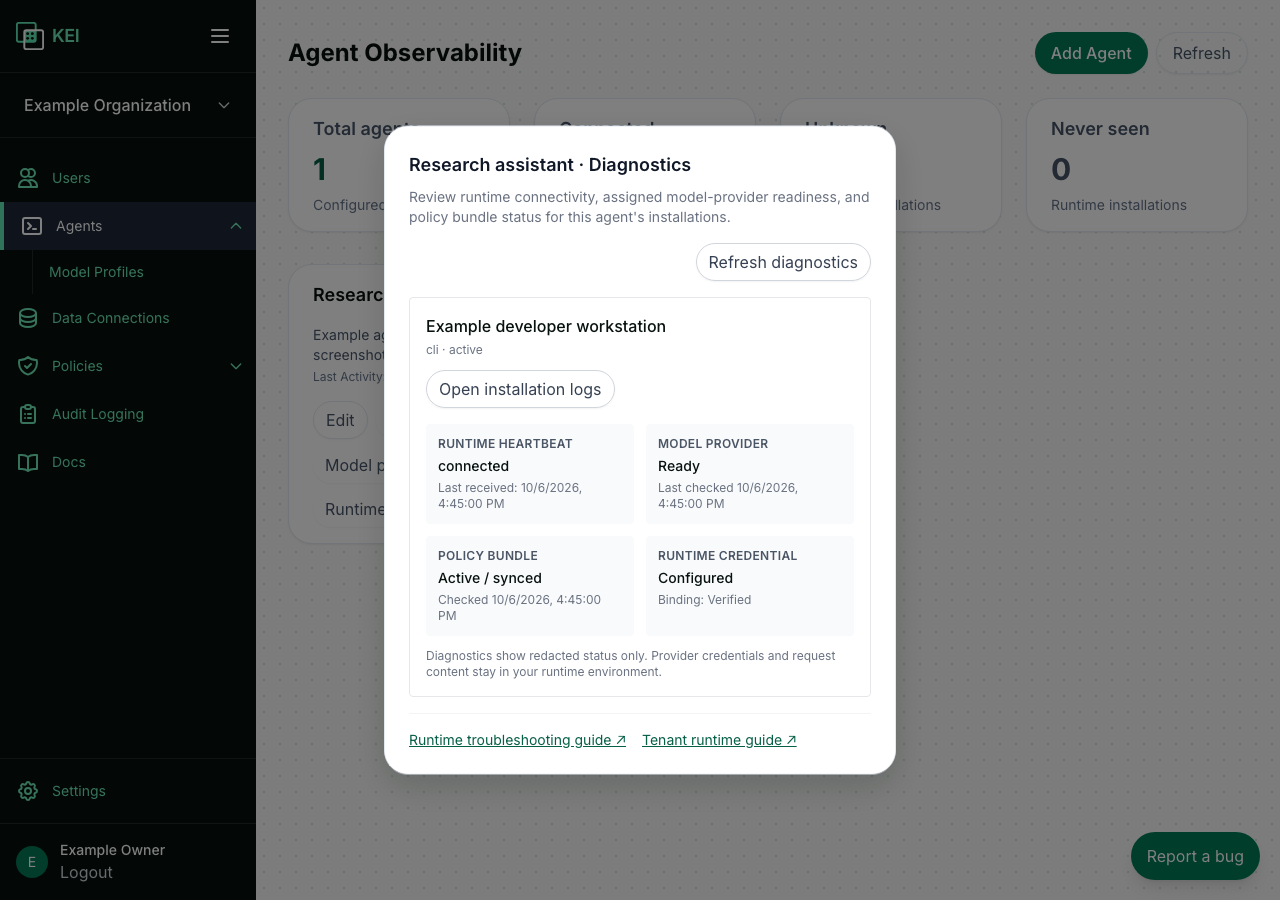
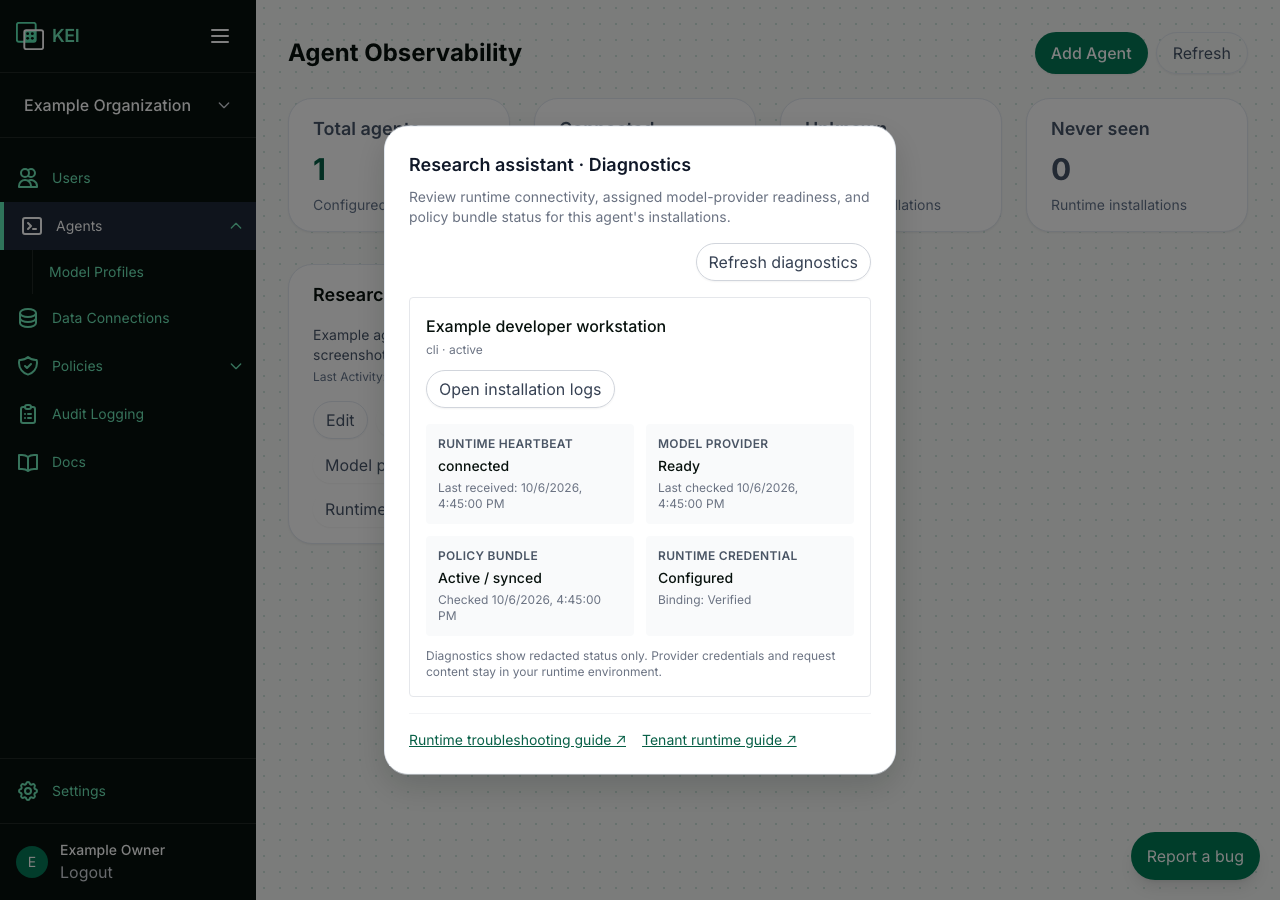
Open Agents → Runtime installations → Diagnostics and read the policy bundle reason. Use that reason to follow runtime troubleshooting. A policy bundle must be active and synced before governed calls can proceed.
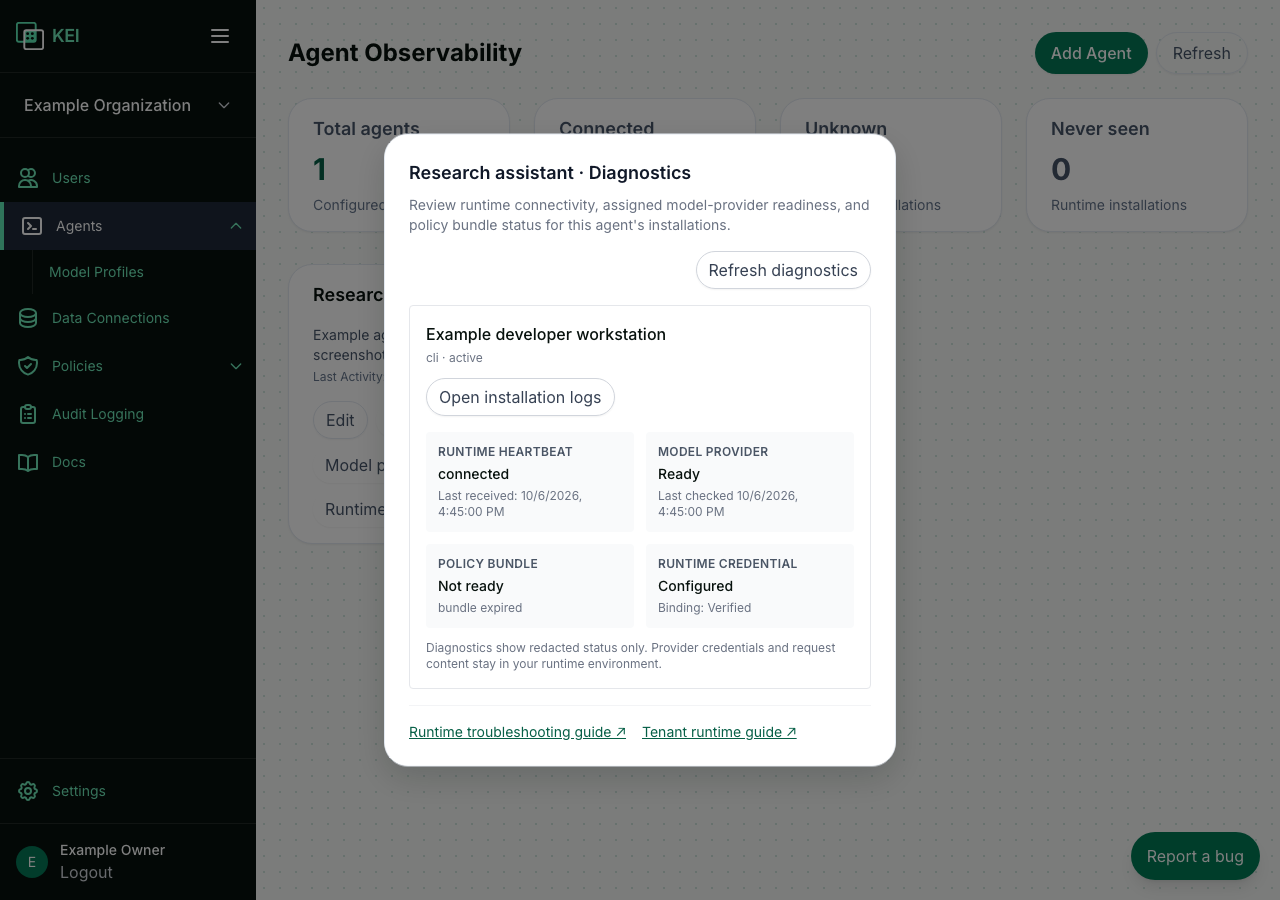
For connectors and SDK (Agentware) integrations, requests without a matching policy or connector binding are denied; Claude Code, Codex, and OpenCode fall back to their own permissions (see Run your own harness with Kei permissions). Pi’s extension blocks denied and unsupported calls. Open WebUI uses its own integration. Review decisions using redacted audit metadata; credentials, payloads, and results must not appear in logs.
Keep your runtime online#
The Kei runtime service sends heartbeats continuously after you log in. On macOS it runs as the com.haikeilabs.kei-runtime LaunchAgent; on Linux it runs as a systemd --user unit. The service uses the RUNTIME token in ~/.config/kei.yaml. It does not use your kei login CLI token. Because the service runs independently of your harness, it keeps the runtime installation connected even when no harness is running.
Manage the service from a terminal with:
kei runtime service install
kei runtime service status
kei runtime service uninstall
On macOS, service logs are at ~/Library/Logs/kei-runtime.log.
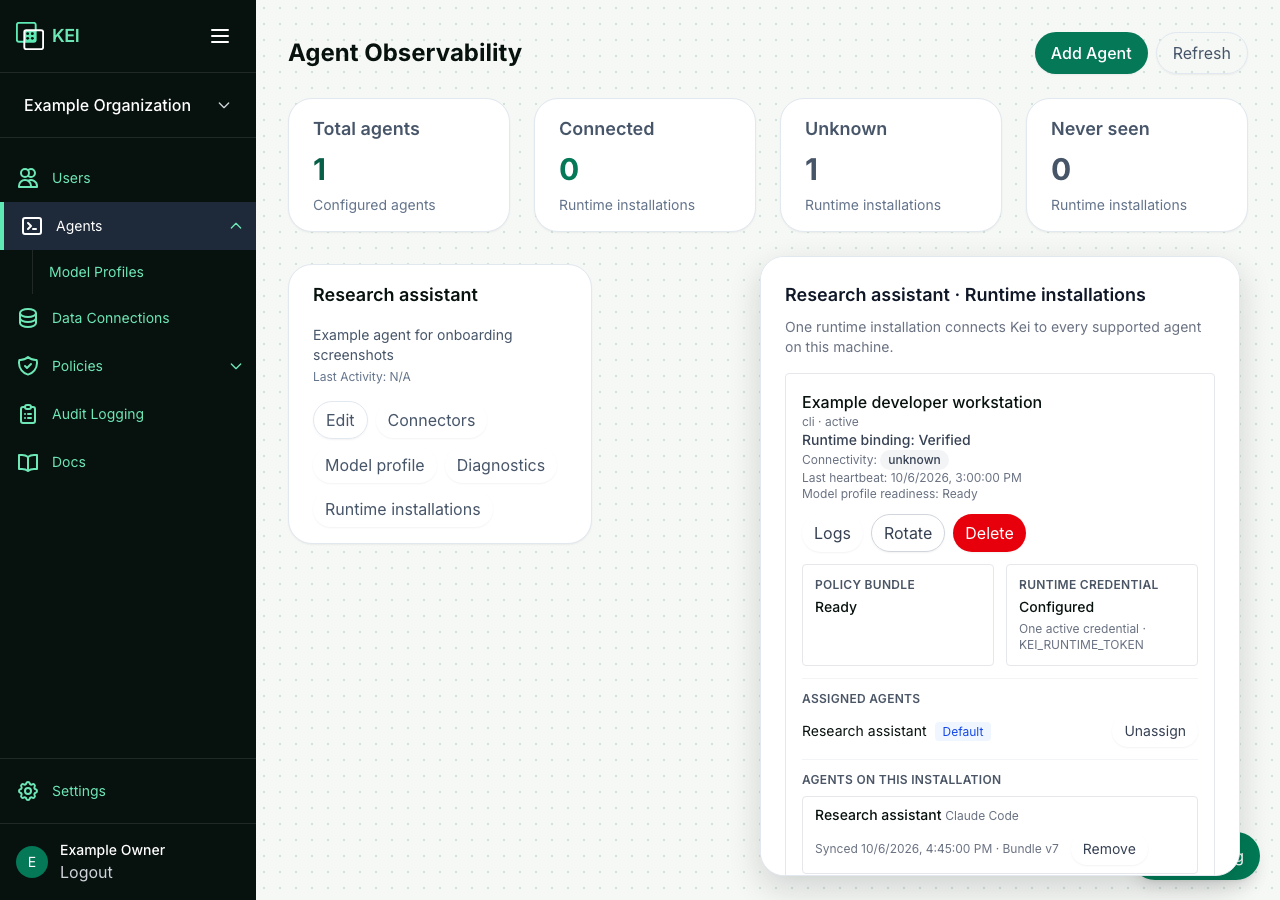
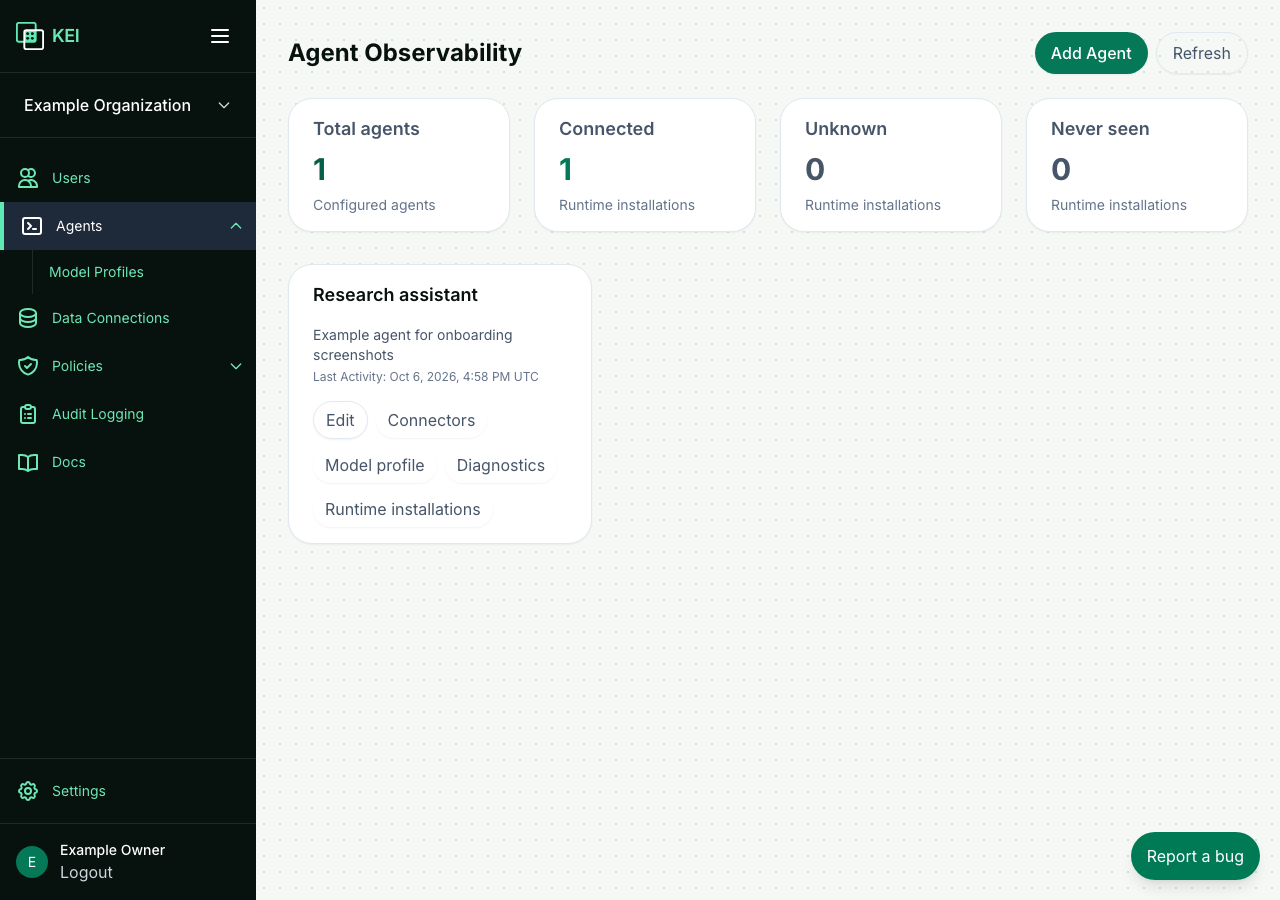
Installation connectivity and agent activity describe different things. The installation is Connected, Unknown, or Never seen according to its heartbeats. Each harness agent’s Last Activity is updated by its most recent tool call through the harness hook and audit pipeline. A connected installation can therefore have no recent agent activity.
If an installation is Unknown, the service is not running or its heartbeat is stale. Check it with kei runtime service status. A pending installation has not sent its first heartbeat yet; pending is a runtime status, not an approval step.
Run your own harness with Kei permissions#
Read How Kei decides: policy priority and precedence for policy weights, matching rules, and worked examples.
For Claude Code, Codex, and OpenCode, Kei can write command policies into each harness’s native permission settings. The harness makes its own native decision (allow, deny, or ask) from those settings. kei-proxy does not decide these prebuilt harness command calls.
How it works#
Kei policies can match shell commands (shell:), skills (skill:), or paths (path:). Prebuilt harness rendering resolves workspace-wide and harness-level sources (*, harness:*, harness:<kind>, and harness:<id>) plus agent-level sources. group:, user:, email:, and org: sources are not rendered into Claude Code, Codex, or OpenCode settings; runtime authorization evaluates identity-based sources for governed connector and custom-harness calls. Kei compiles matching policies into the versioned runtime policy bundle. Run kei harness sync to apply the bundle’s matched permits and denies to the registered harness:
- Claude Code:
~/.claude/settings.json, inpermissions.allowandpermissions.deny. - Codex:
~/.codex/rules/kei.rules; deny policies render asprefix_rule(..., decision="forbidden"). Onlyshell:command policies are enforceable in Codex;skill:,path:, and tool policies are not rendered. - OpenCode: the
permissionblock inopencode.json, resolved from theOPENCODE_CONFIGenvironment variable, falling back toXDG_CONFIG_HOME(default~/.config/opencode/).
Kei also installs PreToolUse and PostToolUse hooks for reporting tool calls to the audit pipeline. The hooks always exit with code 0; they only report and never decide or block a call. The harness’s native permission settings determine the native decision.
When no Kei policy matches a command in one of these prebuilt harnesses, the harness makes its own native decision from your existing entries and permission mode, which is usually ask.
SDK (Agentware) integrations do not have these native permission files. Their governed calls are evaluated by kei-proxy; a call with no matching policy is denied. Connector calls also go through kei-proxy and fail closed when no policy matches.
Use Kei as the only permission source#
Preview changes before writing them:
kei harness sync --dry-runTo make Kei the only source of command permissions, remove your own allow and deny entries from the harness settings, and keep its permission mode at the default ask. Kei only edits the entries it manages. For Claude Code, Kei keeps a backup at ~/.claude/settings.json.kei-backup-<timestamp>.
Run kei harness sync manually after each policy change. There is no automatic re-sync today. The runtime reuses the current bundle while policies and harnesses are unchanged (up to 6 hours); after a change, run kei harness sync again. kei-proxy policy show shows the bundle version and state.
Known limitations (as of 2026-10-07)#
- Sync is still manual. Run
kei harness syncafter each policy change. - With
kei-cli0.1.17 or later, plainkei harness syncnever adds an OpenCode catch-all permission. It edits an existing OpenCode config; if none exists, it installs only the audit plugin. It also does not write an empty Codex rules file.
Report a bug from your harness#
You can send a bug report directly from your terminal — no need to leave your harness to fill out a form.
Report through the Kei console — The Report a bug button in the console header (or sidebar on mobile) sends to the same endpoint.
<img src=“/assets/images/report-bug/console-report-bug-dialog.png” alt=“Report a bug dialog in the Kei console with a description entered and a screenshot attached” style=“border: 1px solid #d0d7de; border-radius: 8px; margin: 12px 0;”>
Prerequisites#
kei CLI version 0.1.20 or later. Run kei version to check. Upgrade with kei upgrade or re-run the installer.
Send a report#
Claude Code#
kei feedback --export claude --description "<what went wrong>"Optionally attach a specific session:
kei feedback --export claude --session <session-id> --description "<what went wrong>"Codex#
kei feedback --export codex --description "<what went wrong>"OpenCode#
kei feedback --export opencode --description "<what went wrong>"You can also attach a transcript file directly:
kei feedback --session /path/to/transcript.log --description "<what went wrong>"What happens#
-
Kei finds the transcript for your current working directory (or uses the session or file you specified).
-
Secrets — API tokens, passwords, private keys — are redacted before anything leaves your machine.
-
You see a preview with redaction counts (never the content) and are asked to confirm.
<img src=“/assets/images/report-bug/cli-feedback-preview.png” alt=“CLI preview of kei feedback --export claude showing the description, evidence file, redaction counts, and the submission confirmation” style=“border: 1px solid #d0d7de; border-radius: 8px; margin: 12px 0;”>
-
Answering
nocancels the report and nothing is sent. -
If a Kei runtime token is found in the transcript, the CLI warns about the leak: rotate the credential and tell our team where it came from.
Claude Code in the Claude Desktop app — Works the same way. Plain Claude Desktop (the chat UI) sessions are not yet supported.